Knowledge
Show a good understanding in grid computing and its use within VFX render queues – at a basic level. Expand on how to balance resource needs within the company’s physical capacity and render optimisation techniques.
Skills
Demonstrate you have the ability to monitor, manipulate and report on render queues. Monitor, track and report render resource usage and more importantly identify render errors and x/escalate them as appropriate.
Knowledge
There are times when rendering versions attempting to attain a certain look testing it in a bash comp in Nuke, you have to do the initial tests in the Arnold render view. In this viewer you can get a realtime render of the viewport, which is useful when you are manipulating and playing with shaders to get achieve photorealism. In heavy scenes with a lot of assets and shaders to render, the renderview can slow down considerably, obviously depending on hardware. A remedy for this can be to render at lower resolutions. You can choose to render at as low as 10% and as high as 200% resolution to tweak performance.
Skills
At the Mill we have rendering and caching tools built for both Houdini and Maya. The Maya tool for rendering is called Pod. The Pod tool takes advantage of grid computing to manage render times. This also controls the formatting and where files are written to. For all renders we use a tool called render status to monitor the progress of the render. This is also where we can see how much resources are being used by our render job.
There is also a tool used by Leads and more senior artists that allows them to see every render job and the resources they are using. They then use this information to find out how many resources they can use. If a render is urgent perhaps because a client meeting is soon then often artists will call down to scheduling and engineering to request more machines to make their render faster. In Houdini when rendering through certain Mill nodes you can set a priority value which dictates how many machines your render may be assigned. This can be useful if you are aware of what is more of a priority for the job you are on or if the render time isn’t very long with minimal resources being careful not to unbalance the needs with the company’s physical capacity.
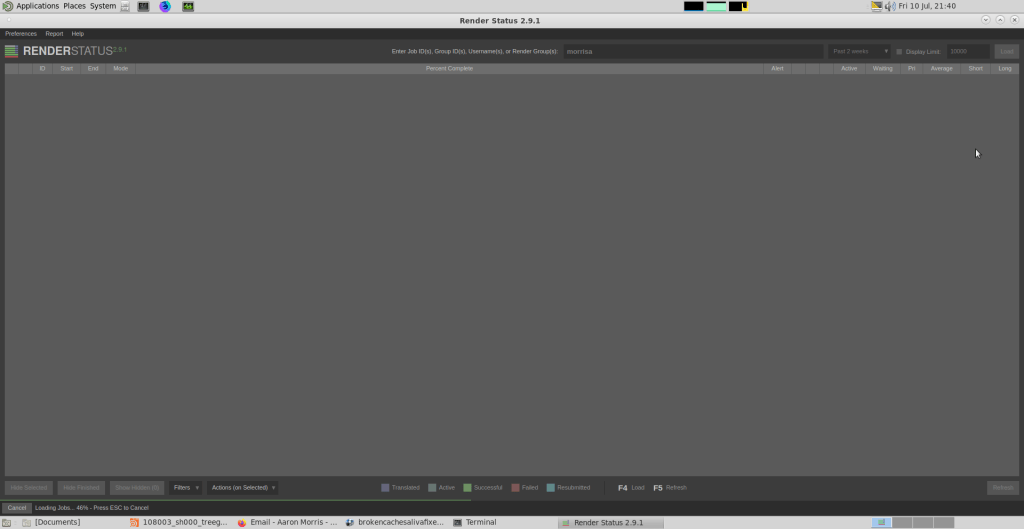
If you have any issues in the Mill render manager the feedback is real time so if you refresh, which you can do at any time, you can update the state of progress. This also is useful for feedback on errors that can sometimes occur. Occasionally during the translation stage of the renders the render can fail but can be restarted easily through the tool. You can also check how many boxes are being used to render at any time. They display the computer box name with a percentage bar for each displaying their individual progress and how data the individual box is responsible for rendering. If your computer is taken to be used on the farm and yo are on a machine with lower computing power it may hinder what you are working on at the time. You can opt out of the render farm for that particular render process at any time by entering “takeoutfarm” in the computer terminal.

